Thứ Hai, 26 tháng 5, 2014

How to Stop iTunes AutoFilling Unwanted Music Onto an iPhone / iPod touch / iPad

Stop Unwanted Music Autofill in iTunes to iOS

Have you ever wanted to just copy a song or two over to your iPhone, iPod touch, or iPad from iTunes, only to have iTunes try to sync a whole barrage of unwanted music to the iOS device? That happens due to iTunes AutoFill, a feature that some users may enjoy as it will fill up an iOS device automatically with music, but it can be very annoying if you just want to manually add a few songs over yourself without having a whole set go along with it.

Typically if you manually manage music, you can add some music with a simple drag and drop song transfer that will not force syncing of everything in iTunes. But if the iOS devices music library has been pre filled through a recent sync or backup, it will try to autofill more stuff along with that action, regardless of whether you are manually managing music or not. The simplest way to identify this is happening is that when you try to copy a single song over in iTunes, you’ll see the iTunes progress bar indicating something like “Updating Files on iPhone – Copying 1 of 254: Song Name”, so what we’re aiming to do here is to remove those 254 songs that iTunes wants to autofill over to the iPhone, iPad, or iPod touch.

Unwanted music autofill to iOS from iTunes

Sure, you can get around this by copying music to iOS devices from the desktop instead, but most users don’t manage their music that way. We’re offering two solutions to this nuisance, one is quite simple, and the other is a little more convoluted simply because the AutoFill behavior is overly quirky.

Solution 1: Create a New Updated iOS Backup with iTunes

This is the easiest way to go. Because the iTunes Music AutoFill list populates itself based upon your most recent iOS backup made to iTunes, you can simply make a backup in iTunes that is new and freshly updated to get around the weird autofill behavior. This works because the backed up playlist into iTunes now matches the playlist on the iOS device, preventing the behavior of the unmatched playlists trying to match each other.

  1. Launch iTunes on the computer
  2. Connect the iPhone, iPad, or iPod touch to the computer with wi-fi sync or USB
  3. Go to the “Summary” tab and choose “Back Up Now” and let the process complete

This will backup everything, and along with it, the Music playlist that is on the iOS device, with a side effect of matching the two music libraries, thereby preventing autofill from dumping unwanted stuff onto your iPhone / iPod / iPad.

Remember, if the current backup doesn’t match up with your current music playlist, the difference in music will be what is attempted to transfer over. This is why making a new backup is important, it will remove any difference in the playlists.

Don’t want to do a backup with iTunes for some reason? You can also just trash the AutoFill library and all the music that is trying to sync to the device.

Solution 2: Clearing Out the iTunes AutoFill List to Prevent Random Music Copying to iOS Devices

Note: This process will remove the autofill library list, and as a result, may also remove music from the iPhone / iPod / iPad in the process as well. This is because the autofill list is, by default, the same list of music on the device – or that wants to be on the device – the discrepancy of whats currently stored on the iOS device versus what’s in this list is what accounts for the unwanted autofilling music that gets copied over when trying to add a single song or two. Make sense? Yes, it’s confusing, mostly because it’s a weirdly implemented feature that doesn’t make a lot of sense. Unfortunately, there’s no simple “Disable Autofill Completely” option, so if you want to stop the random music copying over along with a single song or two this is what we’re left with for the time being. Due to the way this works (or rather, doesn’t work), this is best used if you are starting off with a blank iTunes library on the iOS device, or if you don’t mind simply re-adding the songs you do want back to the iOS device.

  1. Open iTunes and connect the iOS device to the computer (either with USB or Wi-Fi Sync)
  2. Show the sidebar in iTunes so that you can see the ‘Device’ list by going to the ‘View’ menu and choosing “Show Sidebar” – many users may have the sidebar already enabled and you can skip this step if so
  3. Select the iPhone / iPad / iPod touch from that “Devices” list in iTunes and choose the “Music” library listed under the device name – this is important, do NOT choose the “Music” tab
  4. Shown is a list of songs and music that are either currently stored on the iOS device or that are in the Music AutoFill queue – basically if what you see here is not currently on the iPhone / iPod, this is the list of songs that will ALL try to copy over when you are simply attempting a single song or two – this leaves you with two options:
    • Option 1: Remove only the unwanted songs from this autofill sync list by selecting them and deleting them manually
    • Option 2: Delete all songs from this list by hitting Command+A and remove them by hitting the “Delete” key and confirming the removal – again if you have these songs stored on the iOS device they will also be removed from the iOS device
  5. Now use the normal drag and drop trick to copy music over from iTunes to the iPhone, iPad, or iPod touch as usual – only the songs you dragged and dropped will now transfer over without the entire Autofill library going with it

Obviously this is kind of weird, and it could use some serious improvement for usability sake. But this does work, so if you’re trying to copy a single song or a group of songs from iTunes to an iPhone and a whole ton of music is trying to go along with it, this is probably why, and this is how you can prevent it.

Again, the autofill list is typically based upon the most recent device backup, so if you backed up an iPhone to the computer with a different set of music than what’s currently stored on the phone, or if it doesn’t match because you deleted some songs from the Music app in iOS, that discrepancy in the two libraries will make iTunes try to autofill what was based upon the most recent backup. That’s why the first solution offered is simply making a recent backup.

Know of a better way to clear the autofill list and prevent it from trying to populate an iPhone even with manual music management enabled? Do let us know in the comments!

Source : osxdaily[dot]com

Chủ Nhật, 25 tháng 5, 2014

Collaborative foundation aims to boost MIPS adoption

A collaborative, nonprofit foundation has been started by a group of technology companies to boost the adoption of the MIPS processor architecture.

Imagination Technologies, Broadcom, Cavium, Ikanos, Ineda Systems, Ingenic Semiconductor, Lantiq, Nevales Networks, PMC and Qualcomm have founded "prpl," an open-source, community-driven foundation,

Imagination Technologies said Thursday. The company also separately announced that it will collaborate with Oracle to enhance Java for embedded and Internet of Things applications, and to optimize Java for the MIPS CPU architecture.

MIPS implementations are mostly used in embedded systems such as routers and video game consoles, for instance, which could make them particularly useful for the burgeoning Internet of Things market.

Imagination has been pushing to expand the use of MIPS chips since it bought the financially struggling MIPS Technologies in 2012. Currently, more than 3 billion MIPS units have shipped, according to the company.

Each member company will provide its particular expertise to the foundation's engineering groups. For instance, Qualcomm will focus on networking and build a community around OpenWrt, an OS based on the Linux kernel that is often used to route network traffic.

"Instead of every company doing the work individually, they all come together in prpl. They do the work and every company benefits from that work," Imagination spokesman Alexandru Voica said.

Prpl will offer open-source OS distributions for MIPS, including Android, CentOS, Debian, Fedora and Ubuntu, essentially creating a repository for developers and others.

Working together in this way makes sense, said Richard Fichera, vice president and principal analyst of infrastructure and operations at Forrester Research. "As far as I can see, it is an intelligent strategy and program to boost MIPS, which has been under immense pressure from ARM for mobile device market share," he said.

Another focus of the foundation will be on enabling next-generation "data-center-to-device" portable software and virtualized architectures, Imagination said.

That strategy, however, is less to Fichera's liking. "MIPS lost its chance at the core data-center server market," he said, adding that he seriously doubts that anyone will invest in either silicon or systems to have another run at it.

"Any significant investment in a non-x86 server will be centered on ARM or possibly OpenPOWER rather than MIPS. However, MIPS is a perfectly good embedded compute resource, and is appearing in network-edge devices as programmable cores for both embedded network functions and as a user-programmable device," he added.

As for Imagination's collaboration with Oracle, the companies will work to bring broad Java support to 32-bit and 64-bit MIPS architectures for use in a broad range of applications including routers, other networking equipment, mobile devices and the Internet of Things, they said.


originally published at : news.techworld.com

Remove Color Filters from Photos in iOS to Restore the Original Image

Restoring an unfiltered original image in iOS Photos app

Both the actively applied Camera filters and the later added Photos apps based color filtering in iOS can add some nice stylizing effects to pictures, helping to give them a unique look, but if you decide you’re no longer wanting an image to be filtered through a crazy color lens, you can actually easily remove the filter from the picture and restore it to the original untouched version.

This isn’t particularly well known, and it works to strip a color filter even if the photo was taken with a live filter applied and you never saw the original version. For example, an image captured in black and white can return to the full color version very quickly, so long as it was kept on the iPhone, iPad, or iPod touch. While this is usually thought of as a complex digital imaging technique, iOS makes it incredibly simple, here’s what you’ll want to do:

  1. Locate the filtered image in the Photos app of iOS as if you were going to view it as usual
  2. Tap to view the photo and then select the “Edit” button in the corner, choose the Filter circles button when it becomes visible
  3. You’ll notice the currently active filter is selected here, so slide through the filter options and then tap on “None”, followed by choosing “Apply” to remove the filter
  4. Now tap on “Save” to keep the changes and maintain the newly unfiltered version of the picture – this is important, if you don’t tap on “Save” it will revert back to the filtered version of the image

Remove color filters from photos in iOS

This removes the filter from the image completely, restoring the unadjusted image the version that is now visible within the Photos app of iOS, as if the filter was never there to begin with.

Restore an original unfiltered image from a filtered photo in iOS

Of course this only works to strip a filter that has been applied through the bundled iOS filters, either through Camera app or through Photos app, on an iPhone, iPad, or iPod touch with a modern version of iOS. This will not strip a filter applied through third party apps like Instagram or Afterlight, or a filter that has been applied elsewhere and then sent to an iOS device, in those cases you’d probably need to do much more advanced image post-processing on a computer with apps like Pixelmator or Adobe Photoshop to manually restore the images coloration, a much more complex task that wouldn’t result in the original image in the same way.

Source : osxdaily[dot]com

Employers want Java skills more than anything else

Java development was the most sought-after software-building skill by employers searching Dice.com in the first quarter of 2014, the company said on Wednesday.

Employers searched Dice thousands of times to look for software developers, engineers, architects and leads, Dice President Shravan Goli said in a statement. "The number one request by a large margin: Java/J2EE," Goli said. "For a programming language that started to be commercialized about 20 years ago, its stranglehold on modern development is unshakable."

Following Java/J2EE as the most in-demand software development skills were .Net, C++, C#, senior development skills, SQL, HTML, C, Web and Linux. "Experience is clearly of value, with many hiring mangers seeking senior developers," Goli said. But new graduates should not fret, as hiring managers searching for "computer science" ranked number 33 on Dice's site -- a trend that should equate to demand for those with recent diplomas, he said. Dice's survey covered from January 1 to April 15.

For technologies specifically geared to Web development, JavaScript came in at 12th on Dice's list, followed by ASP.Net (17th), HTML5 (19th), PHP (20th), and CSS (32nd). (A recent report by WalletHub found Web application developer to be the best entry-level job.) Mobile platform skills were mostly ranked below Web skills in Dice's assessment, with Android ranking 31st and iOS coming in 35th place.

Looking into what the future holds, Dice anticipates increased demand for developers and designers with skills pertaining to wearable electronics, the Internet of Things, and drones and robots.

The job market in general is rosy for software developers, with the U.S. Bureau of Labor Statistics reporting a 2.8 percent unemployment rate for this sector in the first quarter, Dice said. This compares to 5 percent in the same quarter five years ago and 5.5 percent four years ago. Overall, Dice posted 80,784 available technology jobs on May 1, including 48,202 full-time positions.

originally published at InfoWorld.com


Thứ Năm, 22 tháng 5, 2014

The Methodology Doesn't Matter, It's Having One That Counts

Methodologies can get very religious. Should we be doing TDD? Should we use Waterfall? Should we have stand-up meetings? What sort of continuous delivery should we use?

A few years back I was diagnosed as having type 2 diabetes. At the time I was diagnosed I was not particularly overweight and my diet was not too unhealthy. But I was coming out of a time in my life where I had been overweight and I used to snack a lot. At one of the places where I had worked there had been a food table where you could help yourself to the food and my desk was right next to it. As I used to really enjoy my sweet food it and I didn’t do much exercise it was a health disaster waiting to happen. Now days I eat healthier, have fewer sugary foods and I also exercise regularly.

In my opinion not having a methodology is much like not having a healthy lifestyle. Your code becomes overweight with bug fixes, and getting the code out of the door, much like getting yourself out of bed when you are overweight, can be quite a chore.

I am a great believer in the idea that not only the way you write code, but also the process involved in the delivery of it are highly coupled to the quality of the code. So for me, having a methodology is like having an exercise regime. The methodology helps keep your code leaner and there is a greater chance of pushing the quality of your code higher.

With a healthy lifestyle it doesn’t matter what exercises you do as long as you do something, the same applies to your software development methodology.

It doesn’t matter which methodology you follow as long as you have one.


Preference : foxdellfolio.com. Link : http://foxdellfolio.com/the-methodology-doesnt-matter-its-having-one-that-counts/

Enhance Your Website Traffic with Oldstats.com


The website is the virtual face of your business. The well optimized website adds more value to your business. Are you business website in need of excellent web optimization tool? Then oldstats.com will be the ideal choice. It’s one of the popular web analyzer sites available online. The website is loaded with a wide range of optimization tools including page rank, information of domain, keyword analyzer, free Majestic SEO, Yandex CY, Quantcast rank and much more options... The tools will assist you to know web statics of business website. You can also check your business website ranking on oldstats.com by entering the domain name in the search box.

Features loaded in oldstats.com:

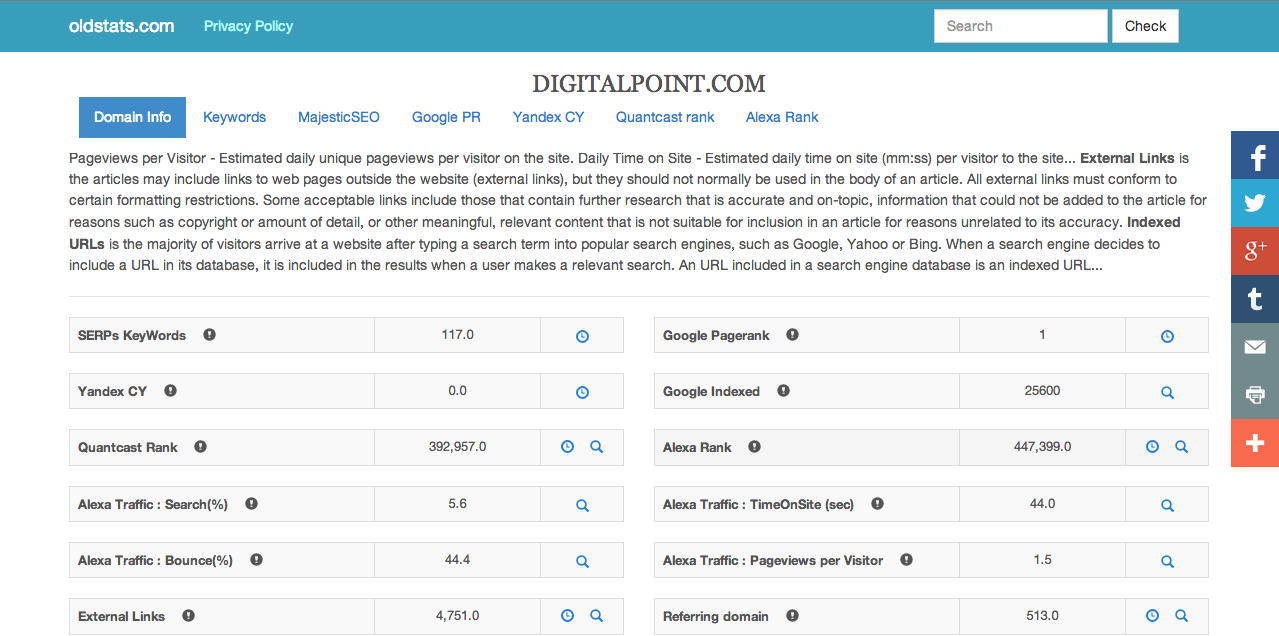
Screen Shot 2014-05-23 at 8.29.57 AM.png

Eg : Analysis the digitalpoint.com

The oldstats.com is loaded with various free optimization tools to enhance your website rankings. You can know page ranking of your domain using free Goggle page rank checker online. You need to type your website domain name in the search box and click ok. It will show your website score out of 10 and strength. You can get free google pagerank, yandex cy, quantcast rank and alexa rank for your website at oldstats.com . You need to mention your domain name in given box, select resolution and then click ok. It analysis to  make your website unique and secured.

The reciprocal link checker in oldstats.com allows check mutual raking with your partner domain name. The mutual link exchange will increase your website traffic rankings in search engine results. The link is very important in search engine optimization techniques. The content and correct keyword selection is very important for every website. The keyword attracts more search engine spider scan and increases your website rankings. The keyword ranking tool will assist you select the best keyword for your content.

The website includes show IP feature to know your IP address. It includes Goggle Map and shows your location virtually. You can also check internet speed, location, bandwidth broadband speed test, waterfall charts and website speed optimization checks. The website includes free promo code for your website. You can copy the HTML link and paste in your website as an advertisement. The promo codes attract more web user to your website and automatically increase your website rankings.


The website also make free auto content for your website and blogs. The article rewriter tools make unique content from duplicate content. The unique content is very important enhancing your website rankings. The article rewriter sill changes some words, phrases and change synonym for some words based on the content.  The tool will make unique content without changing the context of the original article. This tool is very important for internet and online marketer. The keyword analyzer for other search engine will assist you to determine excellent keyword and increases your website rankings in other search engines. You need to type your website domain name and click ok; you get keyword from different search engine. Make use of Oldstats.Com free optimization tools and enhance your website rankings and get more profit online.

How Much Cellular Data Does iMessage Use? Here’s How to Find Out on iPhone

How much data does iMessage use? iMessage sends text messages, pictures, and movies over cellular data rather than through the traditional SMS and MMS protocols, but have you ever wondered just how much of an iPhone data plan all your iMessage use is consuming? It turns out that you can find this information through a somewhat buried location in iOS Settings, and if you’re on a bandwidth capped data plan it may offer some actionable data to work with if you regularly find yourself hitting the limits of your cellular plan.

You’ll be able to find this information on any iPhone or cellular equipped iPad running a modern iOS release, though most of us use iMessage primarily on iPhones, which is why we’re going to focus on that device.

Finding iMessage Data Consumption in iOS

  1. Launch the “Settings” app and go to the “Cellular” section located near the top
  2. Navigate past the listed apps and all the way to the bottom, and select “System Services”
  3. Find “Messaging Services” near the top to see the total iMessage cellular data consumption

Find iMessage data usage

In this screenshot example, “Messaging Services” (iMessage) has used 408MB since the last time the cellular usage data statistics were reset.

See iMessage data usage

Keep in mind most of this message data usage is exclusively due to the photos and videos, not the actual transmission of generic texts and messaging without multimedia. While the former can eat up 5mb per image sent, the latter text communications are literally measured in tiny kilobytes and would barely dent even the tiniest data plans.

Unlike third party iPhone apps and many other bundled services, there is no option to disable iMessage sending over cellular data while keeping it enabled for wi-fi connections, and instead you’d have to turn the feature off completely and fall back to SMS. That certainly works to avoid additional cellular data consumption, but falling back to SMS can have it’s own problems if you don’t have a generous texting plan associated with the iPhone, making it a delicate balance.

Perhaps the better solution for those with capped data plans who get hit with overage charges due to heavy multimedia based iMessaging is to monitor the usage from time to time, and be sure to connect to a wi-fi network as often as possible to unload the data from cellular onto the wireless network. You can always cut back on sending photos and videos too, or selectively send them as an SMS instead if you have a texting plan to fall back on – just keep in mind the SMS/MMS protocol is fairly ruthless with compression and the quality of any image or movie sent over traditional MMS is going to be abysmal compared to iMessage.

Finally, for those who own a Mac and an iPhone and rely on iMessage to easily share files between the two devices, pay special attention to being on a wi-fi network when you use the service to send stuff between iOS and OS X, which is highly effective but can tax a cellular plan particularly hard.

Source : osxdaily[dot]com